Connections · 02
Connect Slack
Give your agent access to your Slack account through a Suit. Connect Slack once, then choose which tools each Suit exposes: search and read discussions, or enable tools that send messages and work with canvases, files and lists.
Before you connect
You need a Tuxedo account, a Slack account in the workspace you want to connect, and a client that supports remote MCP servers. The Free plan is enough to get started; a paid Tuxedo plan is optional.
Slack app eligibility
Connect your Slack account
-
Sign in to Tuxedo
Sign in with GitHub, Google, or a code sent to your email when offered. Signing in for the first time creates your account.
-
Choose Slack
Open Connections, type Slack in Search servers, and choose Connect on its card. Give the Connection a name and handle, and an optional note about what you use this account for.
-
Continue to Slack
If the dialog asks for your own OAuth app, register an internal app for your workspace using its Slack setup instructions. Add the callback URL shown below and the user-token scopes for the tools you need, then enter the app's client ID and secret. Tuxedo stores the secret encrypted. An internal app connects only its own workspace.
Callback URLhttps://tuxedo.bot/oauth/callback
Choose Continue to Slack. On Slack's consent screen, check the workspace, account and permissions before authorizing. Cancel there if any of them are wrong.
-
Check the Connection
Slack returns you to Tuxedo, which loads the tool catalog. The Connection should show Connected. If it needs sign-in or shows an error, follow When a Connection needs you. A refused authorization or an app that is not eligible for Slack MCP cannot complete this step.
Choose what your agent can do
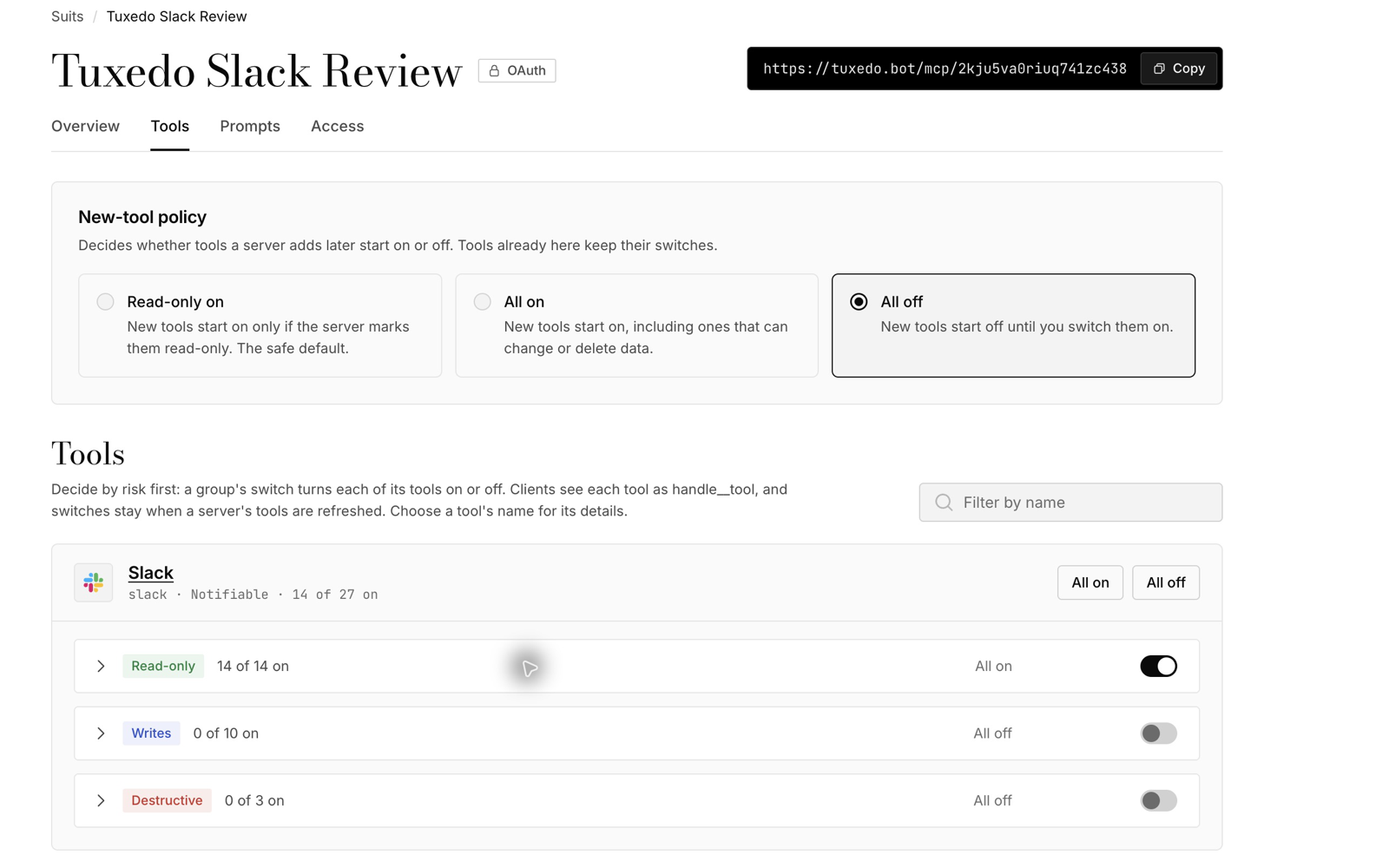
Create a Suit or open one you already have, and add the Slack Connection. All of Slack's tools start on, including the ones that write. On the Suit's Tools tab, switch off anything the agent does not need. Keep a writing tool on only when you want the agent to use it.
Slack controls which conversations and content your account may access. A Suit's switches further limit which tools its clients can call; they do not grant extra Slack permissions. Calls run as the Slack user who authorized the Connection.
Follow Your first Suit for the complete setup. The Suit's overview has instructions for Claude, Codex, Cursor and Grok.
Try it with a test conversation
Start with a channel and dummy messages you can safely share with your chosen AI client. Ask the agent to find a discussion and summarize its thread. If you enable messaging, ask it to send a clearly labeled test message to a channel you choose, then verify the result in Slack.
Switch a tool off in the Suit and refresh the client's tool list: the tool should no longer be available through that Suit. Activity shows the call's name, status and duration; Tuxedo never stores or logs tool arguments or results. The AI client and Slack handle the content under their own policies.
Slack demo
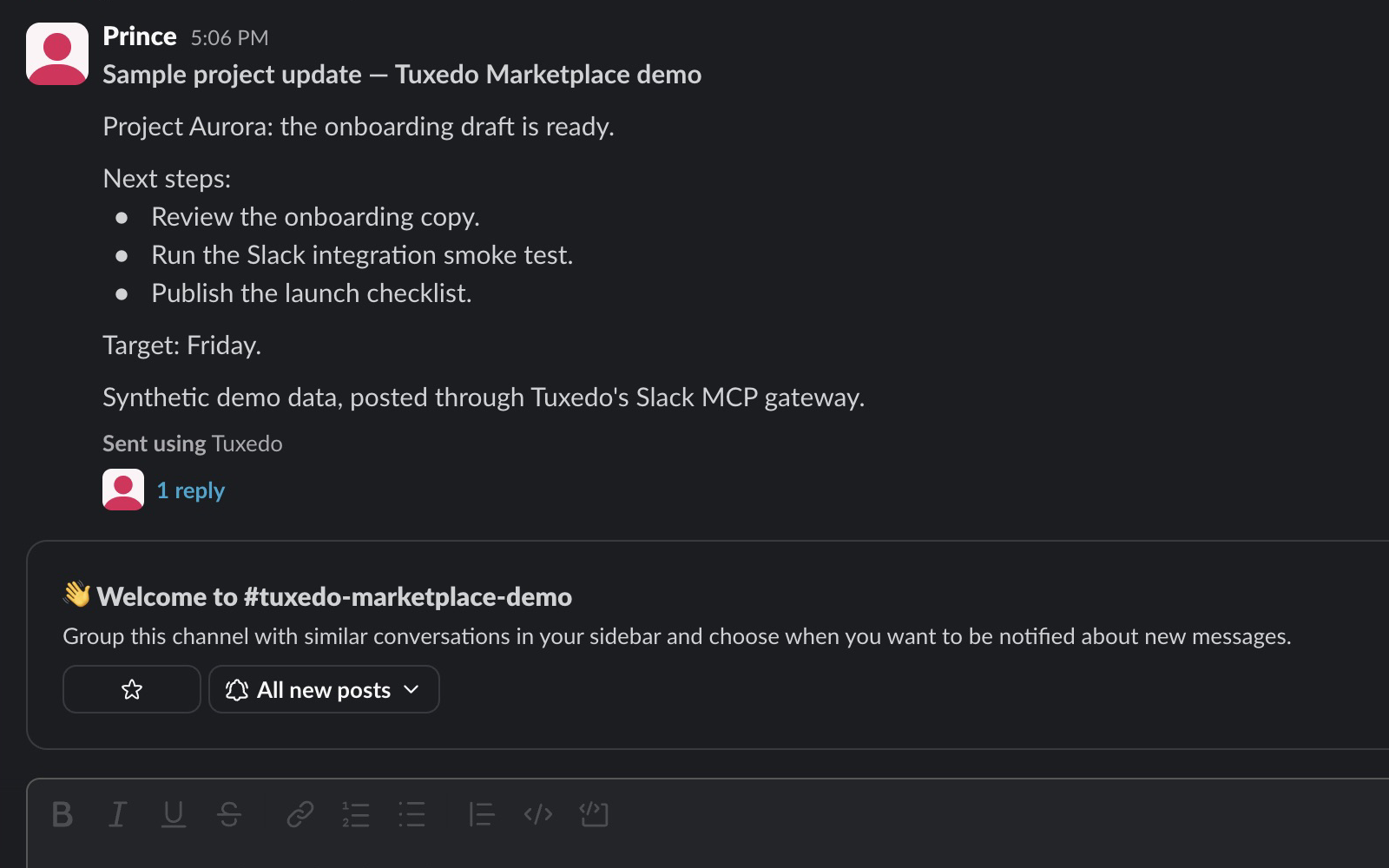
These screenshots show a real connection in Tuxedo's development workspace using synthetic project data. An OAuth-connected MCP client created a private demo channel and posted a project update and a thread reply through Tuxedo. It then read the channel and thread and found the update with a search limited to that channel.
After the demo, messaging and channel creation were switched off. The client's refreshed catalog contained only the 14 enabled read-only tools. A call to the disabled messaging tool was refused, while reading the demo channel still worked.
Disconnect and uninstall
To stop one client, revoke its access on the Suit's Access tab. To remove Slack from every Suit, delete its Connection in Tuxedo. This deletes the stored credentials and removes the Connection from your Suits.
Deleting a Connection does not revoke the app's Slack authorization. Remove or revoke the app in Slack as well to end that authorization. Ask your workspace admin if your workspace controls app removal.
Help and privacy
For installation problems or security questions, write to [email protected]. Include the step that failed and any error Tuxedo shows. Keep tokens, client secrets and private Slack content out of the message.
Read the Privacy Policy, Terms of Service and Security and privacy for data handling and account deletion.